How to Record Military Service and Run the Military Service Report in SteepleMate
Many churches want to honor the veterans and active service members in their congregation, for a Veterans Day service, a prayer list, or a care ministry. SteepleMate lets you record each person's military service on their profile, and then gives you a Military Service report that lists everyone in one place.
You can record more than one period of service for a person, such as time in two different branches. The report shows one line for each period of service.
You need Administrator access (or higher) to open the Military Service report. To add or change a person's service record, you need to be able to open that person under Manage, People. The Military Service section is not part of SteepleMate Free.
Step-by-Step Guide
Step 1: Open the person's profile
Open the Manage menu: Choose Manage, then People.
Find the person: Search for the name, then open the person.
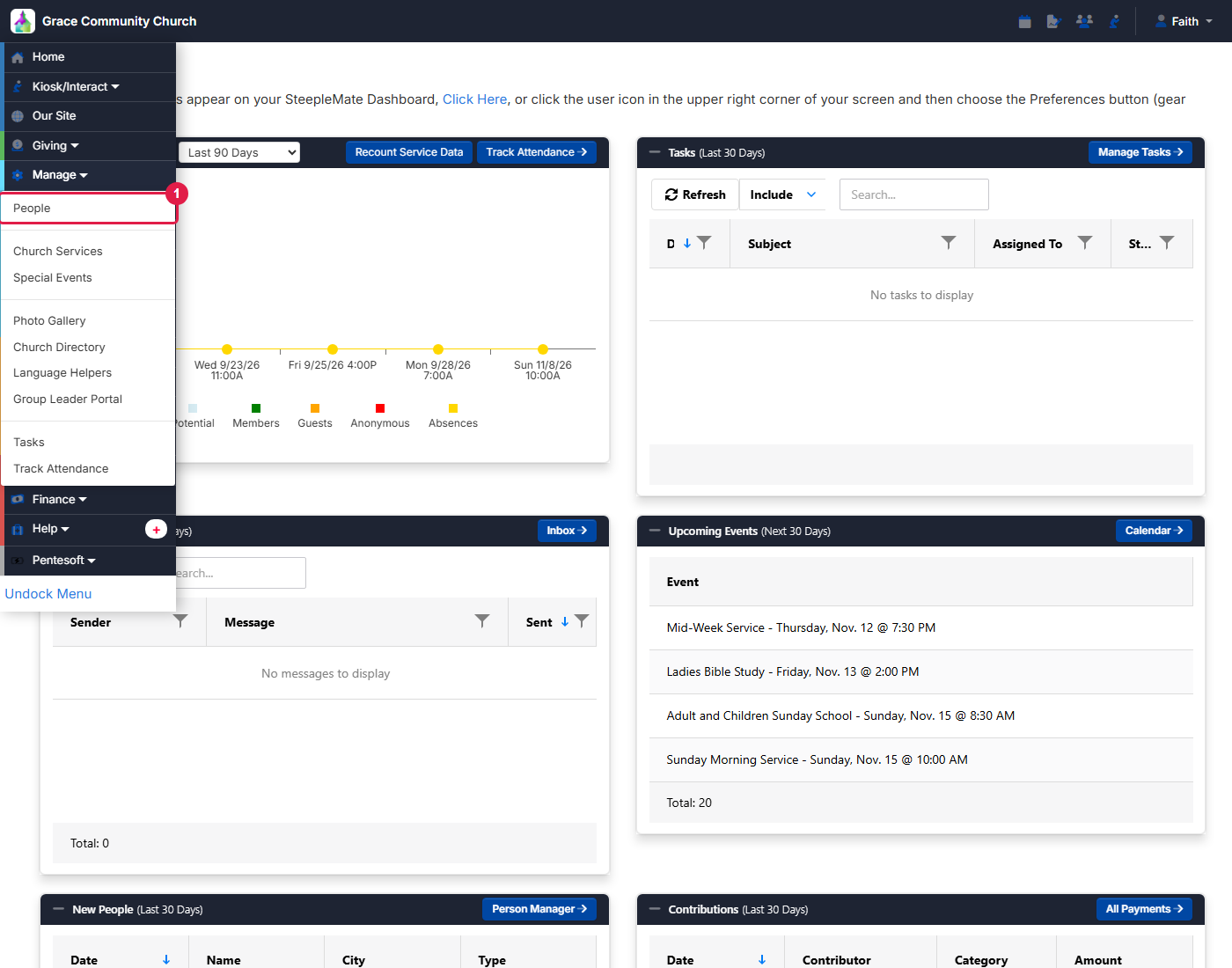
1. People: Opens the People page, where you search for a person and open their profile.
Step 2: Add a service record
Open the section: Scroll down the profile and click Military Service to open it.
Add a record: Click New, fill in the boxes, and click Update. Click Cancel if you change your mind.
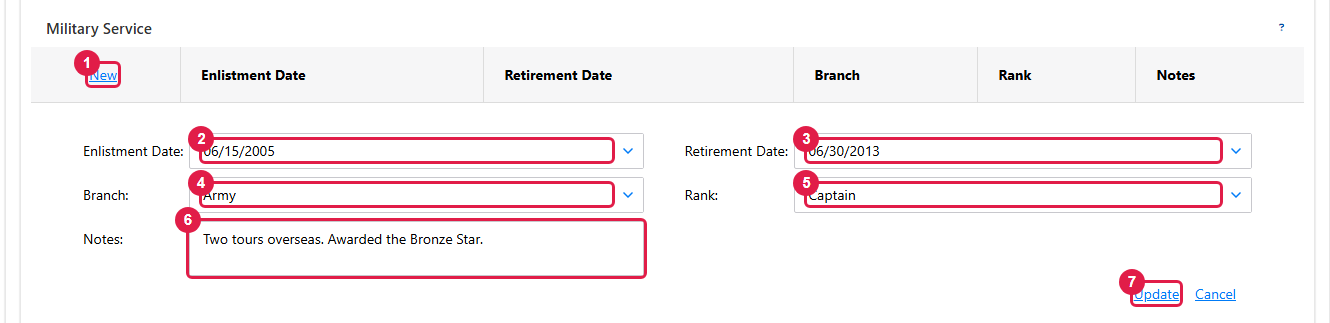
1. New: Starts a new service record.
2. Enlistment Date: The date the person started service. Type it as month/day/year.
3. Retirement Date: The date service ended. Leave it empty for someone still serving.
4. Branch: Choose the branch, for example Army or Marines.
5. Rank: Choose the rank. The list changes to match the branch you chose, so pick the branch first.
6. Notes: Anything else worth recording, such as conflicts, campaigns, distinguished service or medals.
7. Update: Saves the record.
The more complete the record, the better your report will be. SteepleMate suggests putting conflicts, campaigns, medals and similar details in Notes.
Step 3: Edit or remove a record
Your saved records are listed in the section.

1. New: Adds another service period for the same person.
2. Edit: Changes the dates, branch, rank or notes.
3. Delete: Removes the record.
Step 4: Run the Military Service report
Open the Reports menu: Choose Reports, then Military Service.
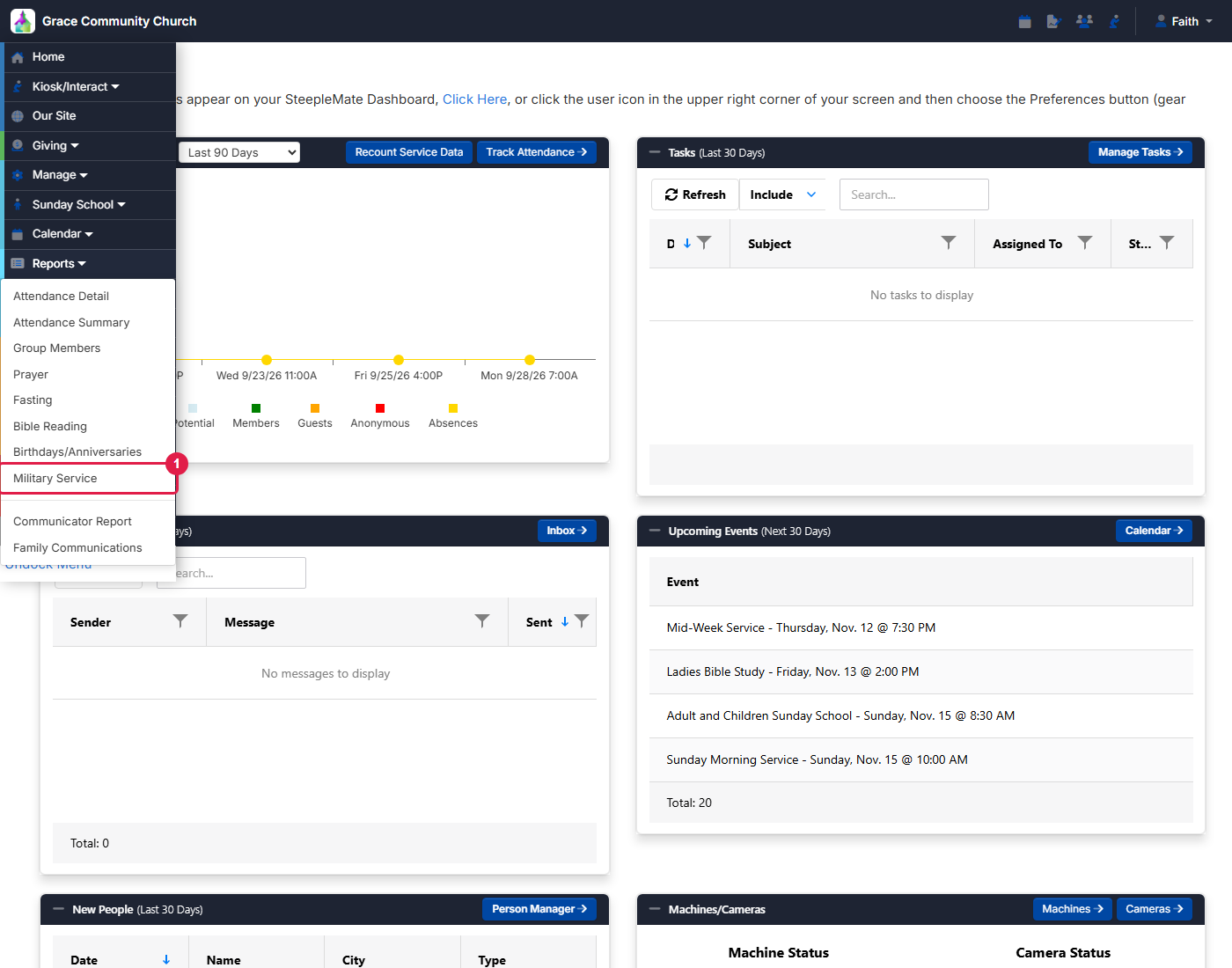
1. Military Service: Opens the Military Service Report.
The report lists everyone who has a service record in your church.
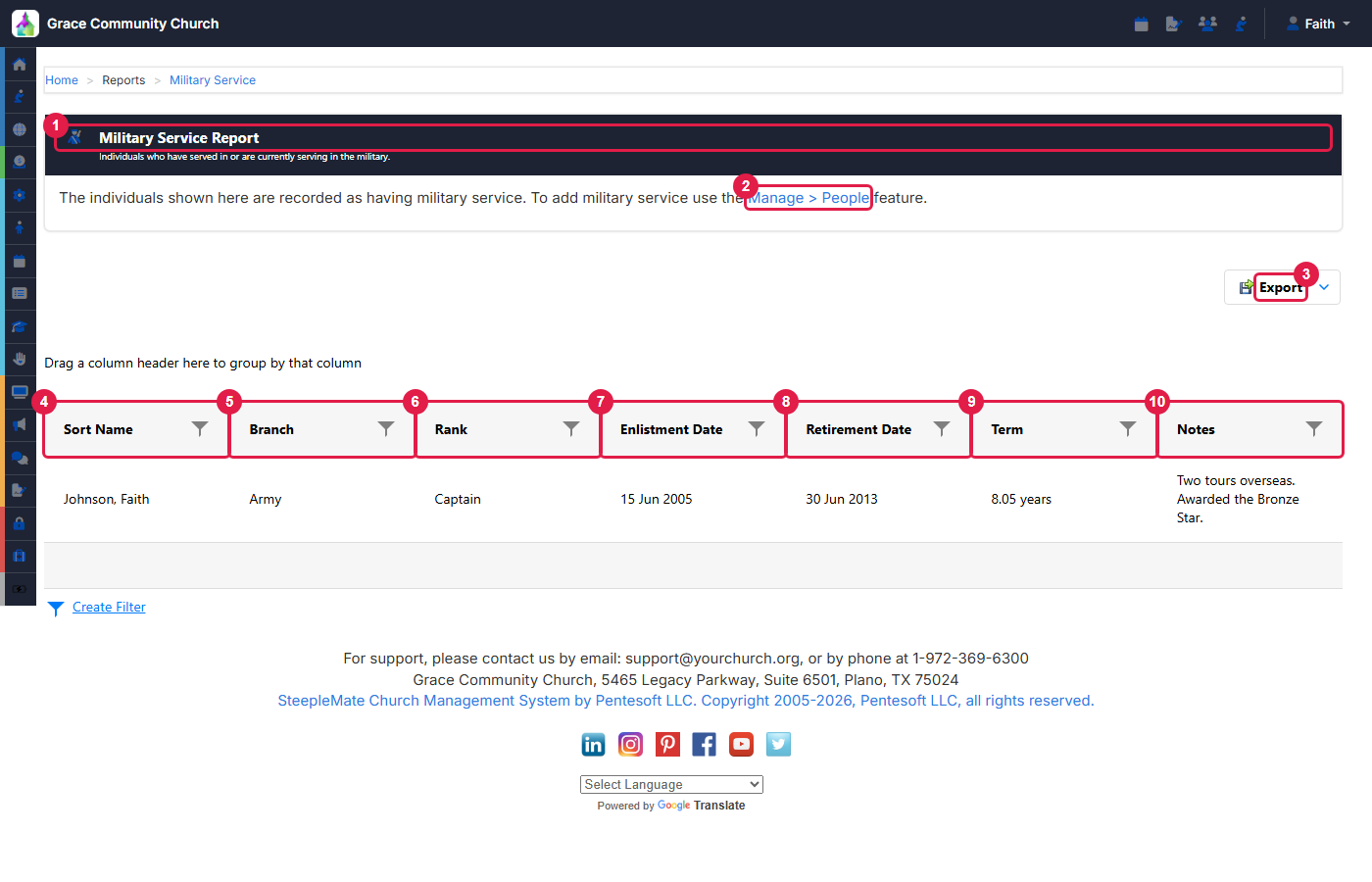
1. Military Service Report: The page title. Everyone listed has at least one saved record.
2. Manage > People: A shortcut to the People page, where you add or change records.
3. Export: Saves the report (see Step 5).
4. Sort Name: The person's name, last name first. The list is in this order.
5. Branch: The branch of service.
6. Rank: The rank.
7. Enlistment Date: Shown like 15 Jun 2005. It says Unknown if no date was entered.
8. Retirement Date: Says Unknown if no date was entered, which is also what you see for someone still serving.
9. Term: The length of service in years. If there is no Retirement Date, it counts from the Enlistment Date up to today, so it keeps growing for someone still serving. It says Unknown if there is no Enlistment Date.
10. Notes: The notes you typed.
To narrow the list, click the small filter icon in a column heading. To group people, drag a column heading to the bar above the table. For example, drag Branch to see people grouped by branch.
Step 5: Export the report
Choose Export: Click Export and pick a format.
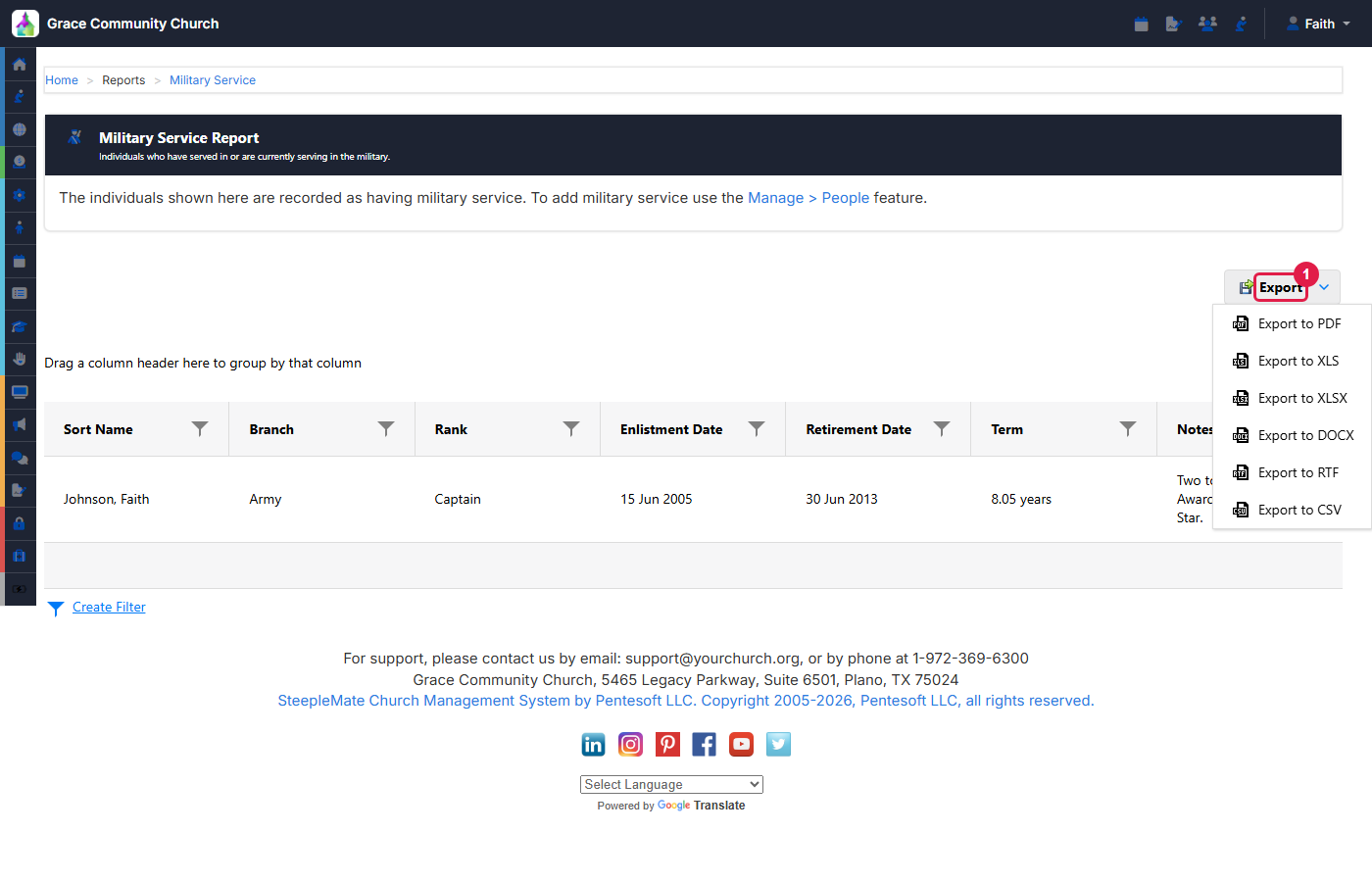
1. Export: Choose PDF to print or share, or XLSX or CSV to open the list in a spreadsheet.
Tips
- * A person can have more than one record, and then they appear more than once in the report.
- * Members can also add their own service record from My Profile. See How to Update Your Profile in SteepleMate.
- * If someone's term looks wrong, check that the Enlistment and Retirement dates were entered correctly.
- * Treat this list with care. It is personal information about your members, so share exported copies only with the people who need them.