How to Run the Birthdays and Anniversaries Report in SteepleMate
The Birthdays and Anniversaries report gives you a list of the birthdays, wedding anniversaries, spiritual birthdays and anniversaries of passing that fall in the months you choose. Use it to plan cards, calls and announcements, and export it when you want to work with the list outside SteepleMate.
You need Care Center access or higher to see this report. If Birthdays/Anniversaries is missing from your Reports menu, ask an administrator to check your access level.
Step-by-Step Guide
Step 1: Open the report
Open the Reports menu: From the left menu, choose Reports, then Birthdays/Anniversaries.
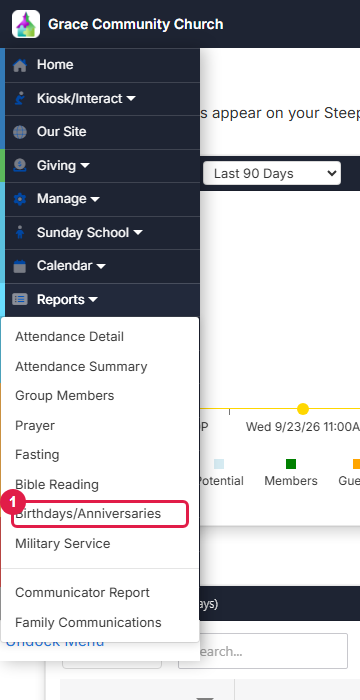
1. Birthdays/Anniversaries: Opens the report page.
Step 2: Choose what to include
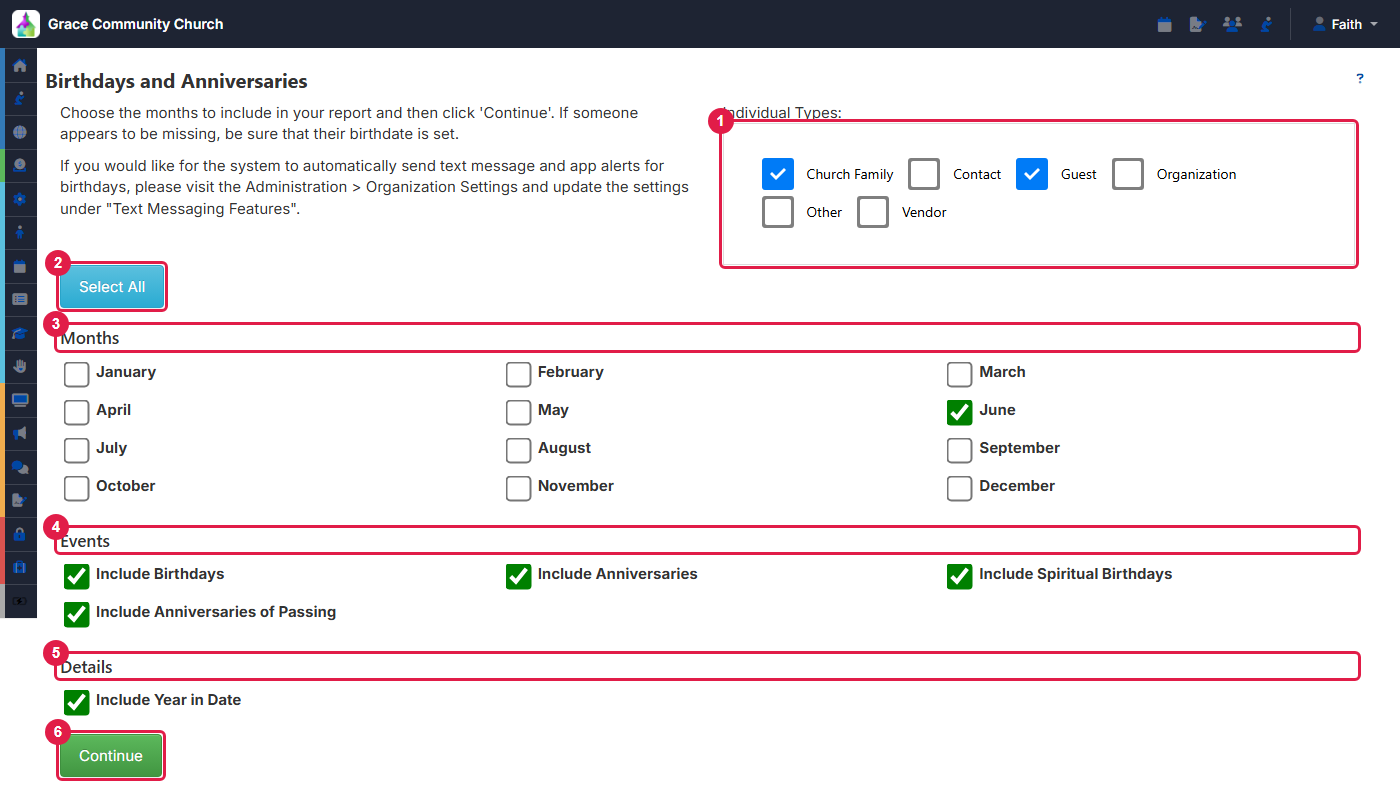
1. Individual Types: Choose which kinds of people to include, such as Church Family or Guest. Only the types you check are listed.
2. Select All: Checks every month and every event at once. The button then changes to Select None.
3. Months: Check each month you want. Choose one month for a monthly mailing, or several for a longer list.
4. Events: Choose what to list.
- * Include Birthdays: People with a birthdate on their profile.
- * Include Anniversaries: Married couples with an anniversary date.
- * Include Spiritual Birthdays: People who have a spiritual birthday date on their profile.
- * Include Anniversaries of Passing: The date a person passed away. These rows show the name only, with no address, phone or email.
5. Details: Include Year in Date adds two columns: the Year of the event and the Celebration Number, which is this year minus that year (for example, a 52nd birthday or a 25th anniversary).
6. Continue: Click it to build the report.
You must check at least one month and one event, or the list will be empty.
Step 3: Read the report
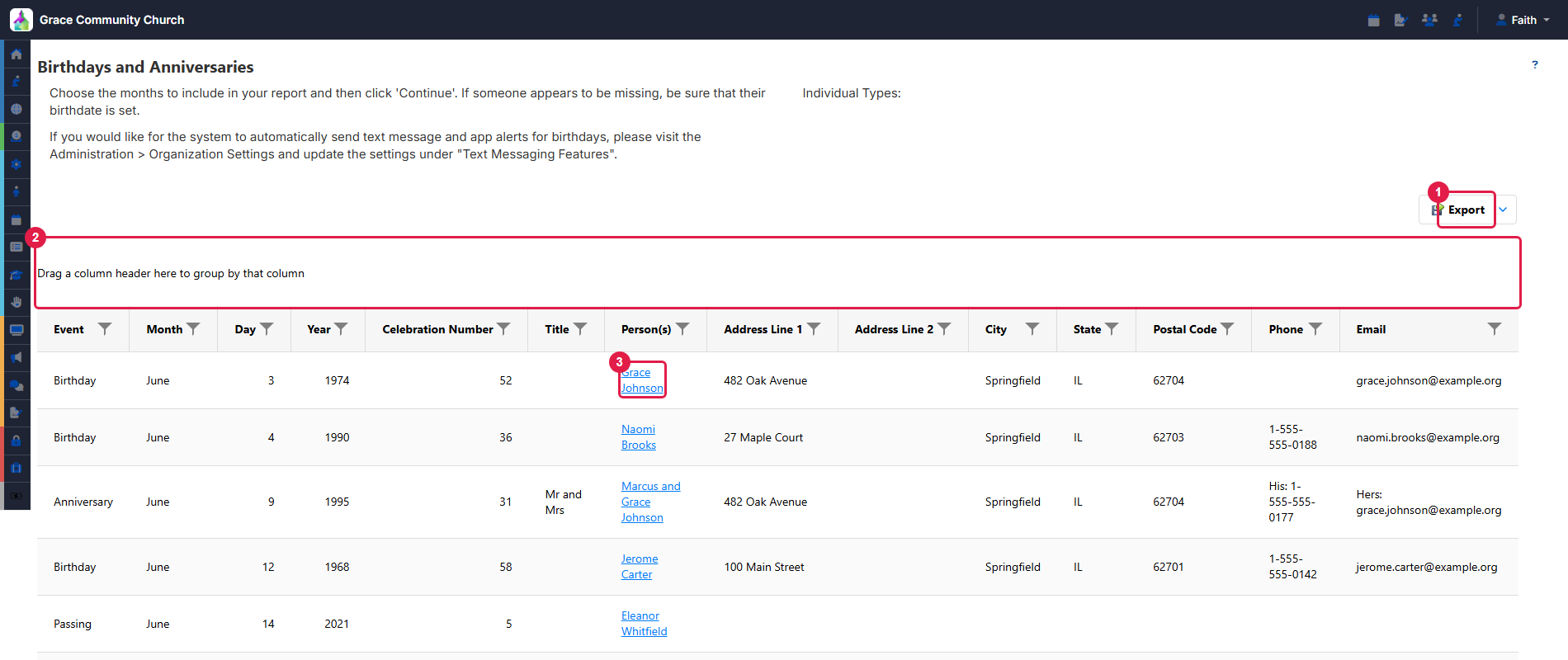
1. Export: Saves the list to a file. See Step 4.
2. Group bar: Drag any column heading here to group the list, for example by Event or Month.
3. Person(s): Click a name to open that person's profile in a new tab. For an anniversary, the link opens the head of household.
The list is sorted by month, then day, then name, and shows 50 rows per page. Click a column heading to sort by it, or use the small funnel in the heading to filter, for example to show only Anniversary rows. The Title, address, phone and email columns come from each person's profile, so they help you address a card or call. For an anniversary the title reads Mr and Mrs, and phone numbers are labeled His and Hers.
Choose Back under the list to change your months or events and run it again.
Step 4: Export or print the list
Choose Export above the list, then pick a format: PDF, XLS, XLSX, DOCX, RTF or CSV.
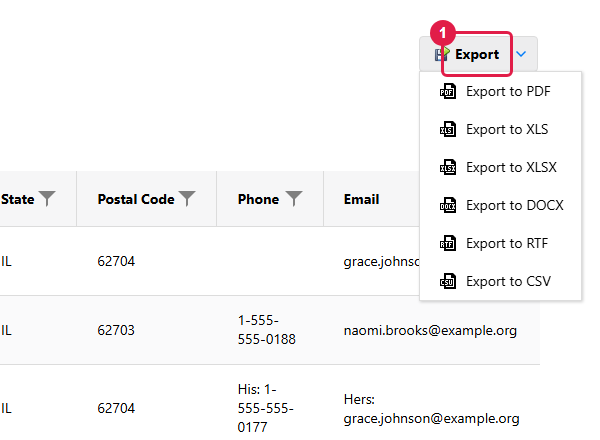
1. Export: Opens the list of formats. The file is named BirthdayAnniversaryReport and includes every row, not just the page you are looking at.
There is no separate Print button. To print, export to PDF (or DOCX) and print the file. Choose XLSX or CSV if you want to open the list in a spreadsheet.
Where the dates come from
The report reads the dates from each person's profile. To add or fix one, go to Manage, then People, open the person and open the Dates section.
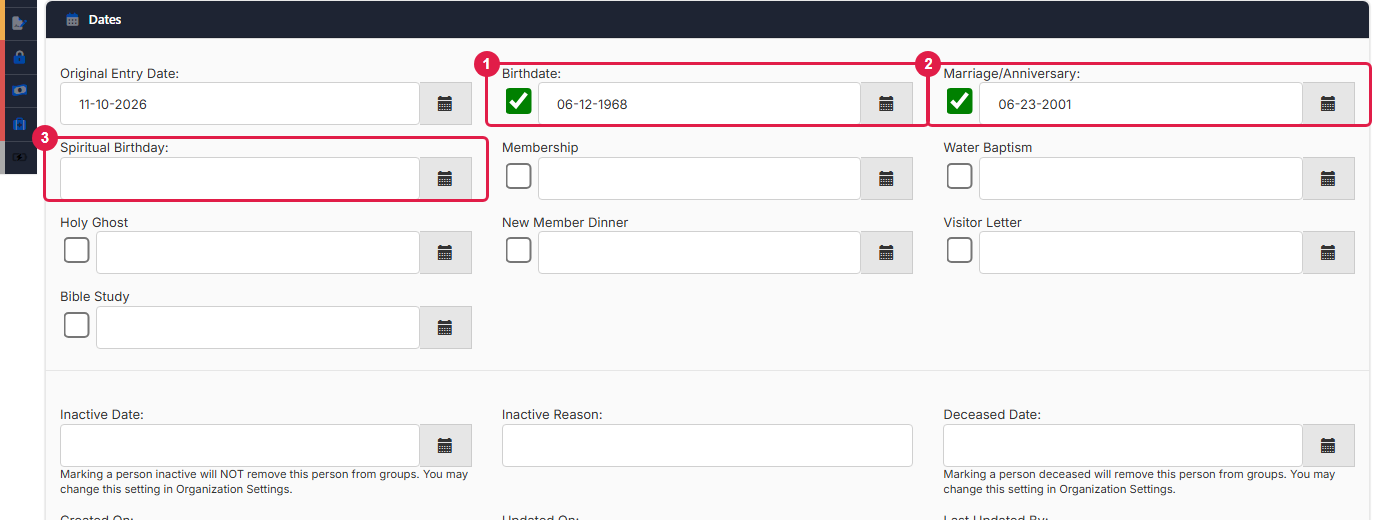
1. Birthdate: The date the Include Birthdays option reads.
2. Marriage/Anniversary: The date the Include Anniversaries option reads. It appears only on the profile of a head of household or spouse, and it is saved for the whole family, so you enter it once.
3. Spiritual Birthday: The date the Include Spiritual Birthdays option reads. It is empty on this example profile.
The Deceased Date field lower in the same section feeds Include Anniversaries of Passing.
The other date fields in this section, such as Water Baptism or Membership, are the ones you can rename. They are not used by this report. See How to Customize Date Fields in SteepleMate.
Why is someone missing?
- * No date: The birthdate, anniversary or spiritual birthday is blank on the profile.
- * Inactive or deceased: Birthdays, spiritual birthdays and anniversaries skip people marked inactive or with a deceased date.
- * Anniversaries need both roles: A couple appears only if the family has one person set as Head of Household and one as Spouse, and both are active. To find families with roles missing, see How to Use the Check Family Roles Report.
- * Wrong type: Their person type was not checked under Individual Types.
- * Wrong month: You did not check that month.
Tips
- * Run the report near the end of each month for the month ahead, and export it to PDF for your care team.
- * Use Include Year in Date when you want to say "Happy 50th anniversary". Leave it off for a simple list of days.
- * The check box beside Birthdate and Marriage/Anniversary on a profile is about showing the date on the church calendar. It does not hide anyone from this report.
- * Anyone with Care Center access or higher can see addresses, phone numbers and emails here, so treat exported files as private.